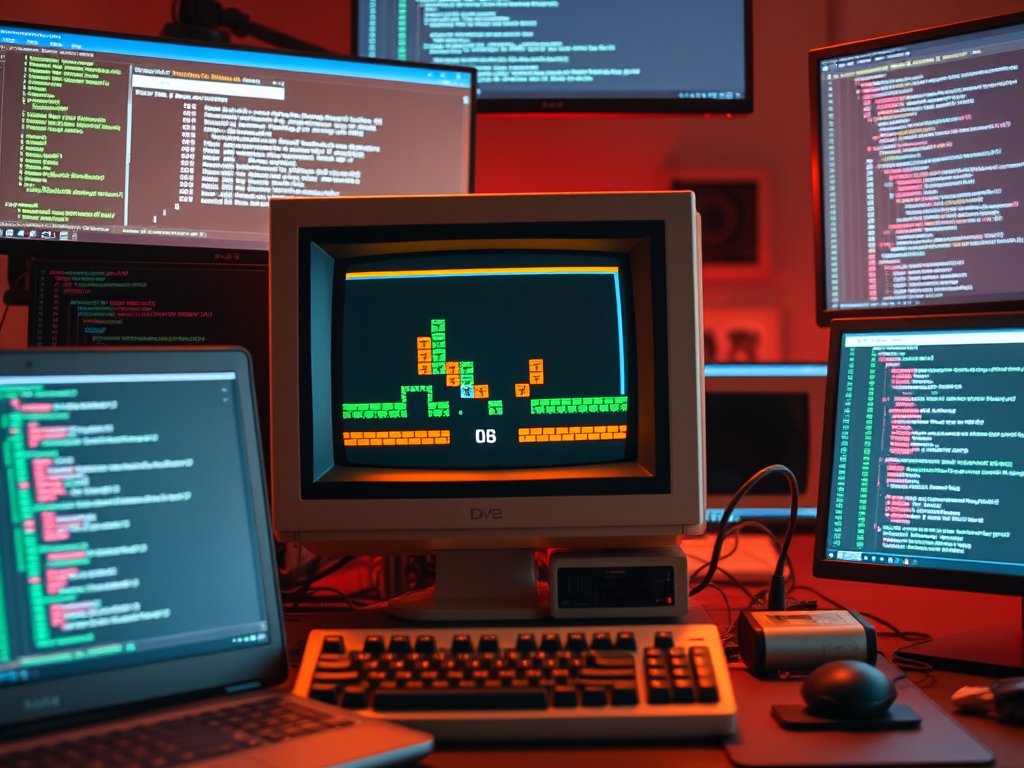
Developing for retro platforms like DOS doesn’t mean you have to abandon modern development practices. In this post, I’ll share how to implement a robust end-to-end regression testing for DOS programs, eg. tools or games. There’s also some code [git].
Bill of materials
- Ubuntu Desktop 24.04 (other distros probably work as well)
- awk, bash (should be installed by default)
- Dosbox-x (I used the flatpak installation, pick whatever works for you)
- Imagemagick
- xdotool
The Goal
We want to automatically run our program inside an emulator, simulate user input, capture the visual output, and verify it against a known “good” reference image. This ensures that recent code changes haven’t broken the rendering or game logic.
1. The Configuration: `dosbox-test.conf`
First, we need a specific DOSBox-X configuration for testing. This ensures a consistent environment (CPU speed, graphics mode, file system) every time we run the tests.
Key settings to include:
[sdl]
# Run in windowed mode so xdotool can find it
fullscreen = false
titlebar = MyGame-Test

[dosbox]
# Where screenshots will be saved
captures = target/screenshots
# Ensure consistent machine type
machine = ega

[autoexec]
# Mount your build directory as C:
mount c ./target
# Mount a directory for logs if needed
mount d ./logs
c:
2. The Test Runner Script
We use a Bash script to orchestrate the build and test process. The core idea is to launch DOSBox-X in the background (so that the shell script can continue) and then use `xdotool` to interact with it.
Launching DOSBox-X
# Clean previous artifacts
mkdir -p target/screenshots
rm -rf target/screenshots/*

# Run DOSBox-X in the background
dosbox-x -conf dosbox-test.conf -c "program.exe" -c "exit" &
PID=$!
Automating Input with `xdotool`
`xdotool` is a powerful utility that lets you simulate keyboard input and mouse activity. We use it to send keystrokes to the DOSBox-X window.
# Wait for DOSBox to initialize
sleep 3

# Search for the window by title and send keys
# F12+p is the default DOSBox-X shortcut for taking a screenshot
xdotool search --name "MyGame-Test" key --window %@ F12+p

# Send 'q' to quit the game (if your game supports it)
xdotool search --name "MyGame-Test" key --window %@ q

# Ensure the process is dead
kill $PID || true
Verifying the Result
Once the game has run and a screenshot has been captured, we compare it against a reference image. ImageMagick’s compare tool comes quite handy as it returns a match score, which allows some wiggle room when screen shots don’t match perfectly.
if [ -f target/screenshots/f99_000.png ]; then
    # Use ImageMagick compare with PSNR metric.
    # compare writes the metric to stderr.
    # Output format is typically "inf" (perfect) or a float dB value.
    # We use awk to extract the first token to be safe against "val (norm)" formats.
    OUTPUT=$(compare -metric PSNR target/screenshots/f99_000.png tests/REFERENCE.png /dev/null 2>&1 || true)
    PSNR=$(echo "$OUTPUT" | awk -F'[()]' '{print $2}')

    # Check threshold (e.g. > 35 dB is usually good quality)
    # Use bc for float comparison
    if [ $(echo "$PSNR < 0.05" | bc -l) -eq 1 ]; then
        echo -e "Regression test ${GREEN}PASSED${NC} (PSNR: $PSNR)"
        exit 0
    else
        echo -e "Regression test ${RED}FAILED${NC}: screenshot mismatch (PSNR: $PSNR)"
        exit 1
    fi
else
    echo -e "${RED}Regression test FAILED${NC}: No screenshot generated"
    exit 1
fi
Conclusion
By combining DOSBox-X’s capture capabilities with Linux automation tools, we’ve created a fully automated regression test suite. This setup catches rendering bugs and logic errors before they are committed, bringing modern CI/CD confidence to retro game development.
Resources
[git] Sample code repository
https://github.com/ggeorgovassilis/dosbox-tests
 George's Techblog